Work in local sessions
A workspace ties a tracked repository and Git worktree to the shell and agent sessions doing the work. Create one from a pull request, provider issue, linked Kata issue, or the New workspace button.
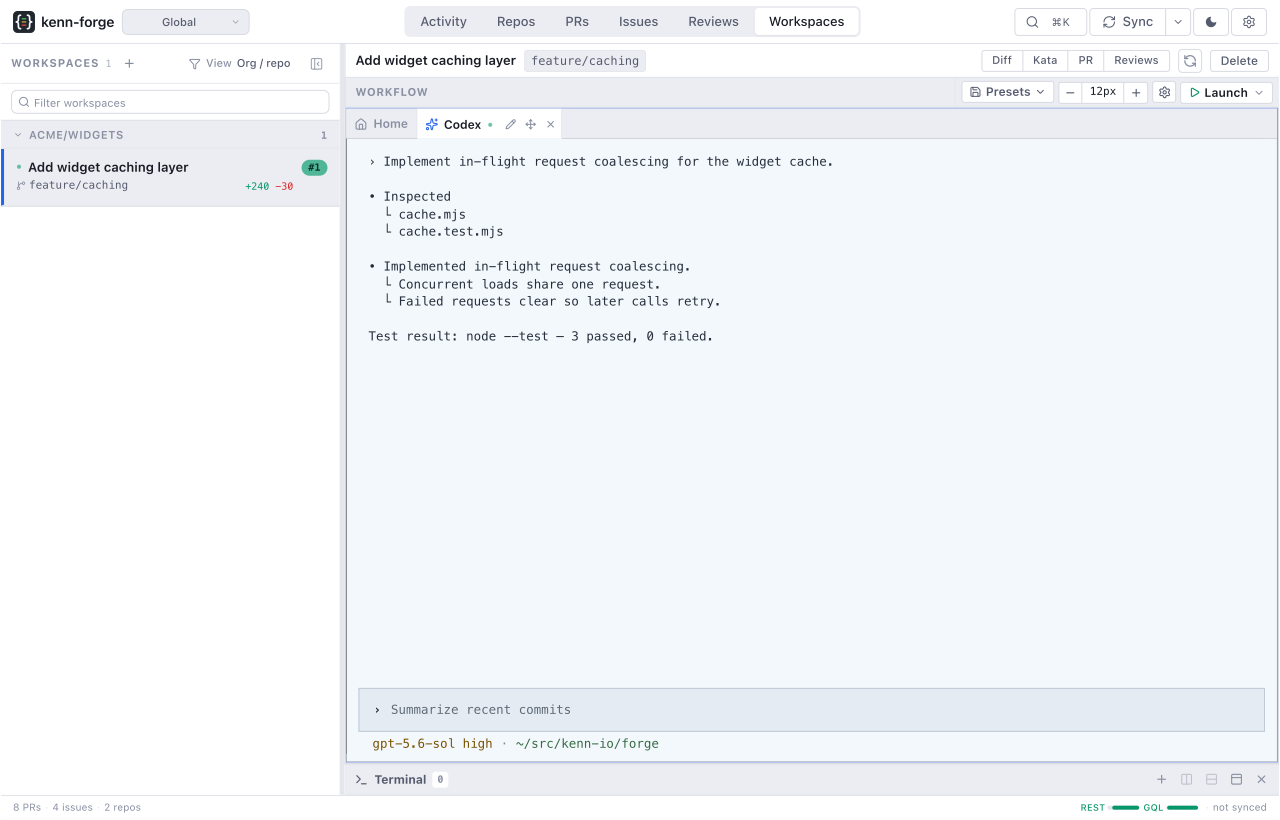
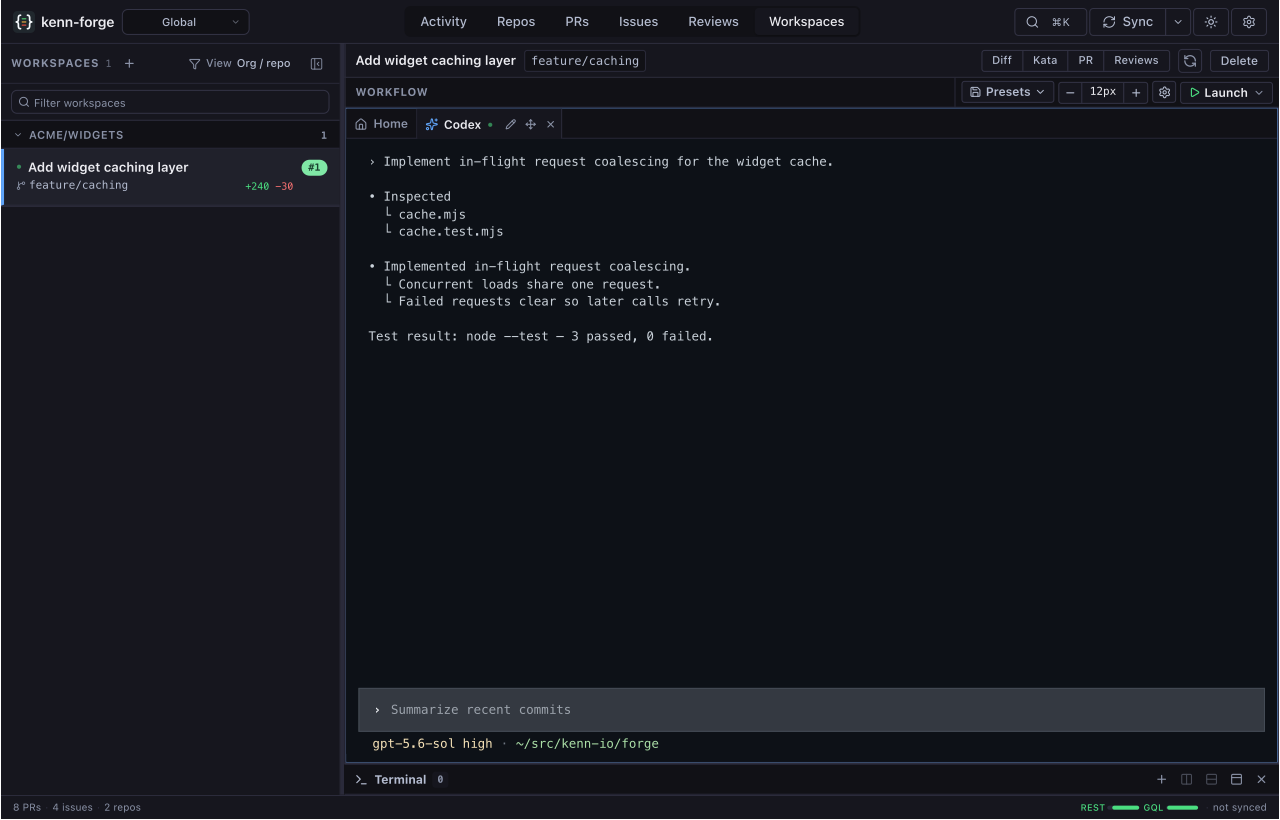
For remote compute, connect a devbox and select it as your workspace machine. Agents, worktrees and tools then run in your account on that host while you supervise them from your usual Forge.
Create the right workspace
From a pull request, Kenn Forge checks out the pull request branch. From an issue, it starts from the repository's default branch and creates an issue branch. An ad-hoc workspace starts from any tracked repository and uses the branch name you choose.
The New workspace dialog also searches a selected Kata daemon. A Kata task needs a repository mapping before Forge can create its worktree.
Choose an agent from the create menu when you want to create the workspace and launch that agent in one step. Creating the same item or ad-hoc branch again reopens the existing workspace instead of making a duplicate.
The lightning icon beside the create menu lists your configured quick actions. A quick action creates the workspace, launches its agent, and sends a preset prompt once the agent is ready, so a routine task such as "rebase this pull request" is one click. Configure quick actions under Settings → Quick actions (see Configuration).
Choose a machine in a fleet
On a fleet hub, New workspace includes a Run on selector. Choose the hub or any spoke that currently allows workspace writes. An unavailable machine stays in the list with the reason it cannot be selected. The chosen machine owns the worktree, Git commands, agent processes, and tmux sessions.
The hub workspace list adds a node badge to every row, so local and remote workspaces are easy to tell apart. A spoke shows only its local workspaces and creates new workspaces on itself.
The workspace buttons on pull requests and issues create work on the Forge UI you opened. Use the hub's New workspace dialog when you need to choose a different execution machine. See Federated fleet for the complete ownership model and setup workflow.
Use the workspace view
The workspace sidebar can search, sort, and group workspaces. Prefix a search
word with ! or NOT to hide matching workspaces. Rows show the
repository, branch, linked item, changed-line counts, and current agent state
when lifecycle hooks report one.
The selected workspace includes:
- Workflow for the base shell and launched agent or shell sessions
- Details for the linked pull request, issue, or Kata task
- Files for the worktree file list and file preview
- Diff for uncommitted and branch changes
Launch another shell or agent from the workspace header. Sessions continue under tmux when you leave the page, reload the browser, or attach from another terminal.
Forge enables application clipboard copying on its dedicated tmux server;
no system-wide tmux change is needed. If you configure a custom shared tmux
server, enable set-clipboard on there to forward agent OSC 52 copies to
the browser. Copy from the active terminal with a mouse or keyboard gesture.
Put sessions beside the work
Pull request, issue, and Activity detail can host the same live workspace. Move a session into its own pane when you want the terminal beside the conversation or diff. You can reorder tabs, drag a tab to split the layout, resize panes, hide a pane, or maximize the one that needs the screen.
Closing a pane changes the layout. It does not stop the underlying tmux session. Use the session controls when you intend to stop a process.
Show agent state in the sidebar
Install lifecycle hooks for the agents Forge supports:
Use --agent NAME to install one agent's hook. The sidebar can then show when
an agent is working, waiting for approval, waiting for input, or done. Without
fresh hook reports, Forge falls back to tmux activity.
On Windows, ending a conversation with /clear or exit clears its badge even
if another program, such as a virus scanner, has the activity file open. If
Forge can't clear it, the SessionEnd hook fails and names the file.
Attach outside the browser
Workspace and session controls expose tmux attach commands. This is useful for a full local terminal or for a remote workspace reached through Fleet. The browser and terminal attach to the same durable session.
Delete or recover a workspace
Delete removes the kenn-forge-managed worktree and its workspace record. A dirty worktree blocks normal deletion so uncommitted work is not discarded. Review the files first. Force deletion is available only after that warning.
To delete several workspaces, Shift- or Cmd/Ctrl-click them in the list, right-click, and choose Delete N workspaces.... The dialog closes when you confirm, and each row shows Deleting workspace until its delete finishes. Bulk deletion never forces, so workspaces with uncommitted changes stay. When it finishes, Forge names each workspace it could not delete and why.
If issue workspace creation finds the expected directory already present, Forge can recover it after verifying that it belongs to the managed repository. A mismatched repository or branch stays untouched and needs manual attention.
Use workspaces on a phone
Open /m/workspaces for the phone layout. It uses workspace cards and shows one
terminal at a time. The session picker moves between the base shell and running
agents without stopping the sessions in the background.
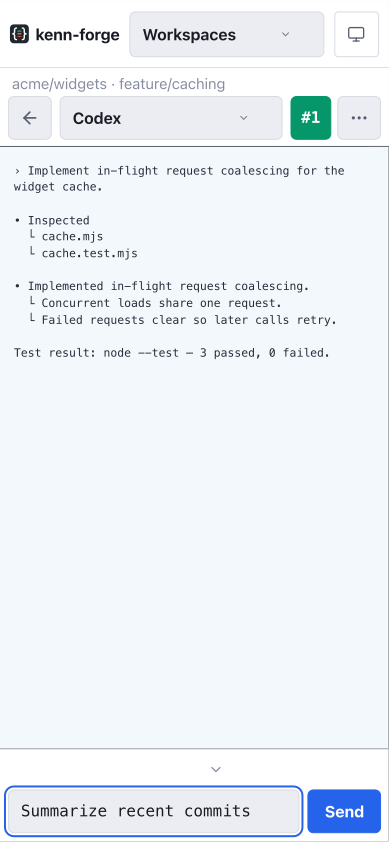
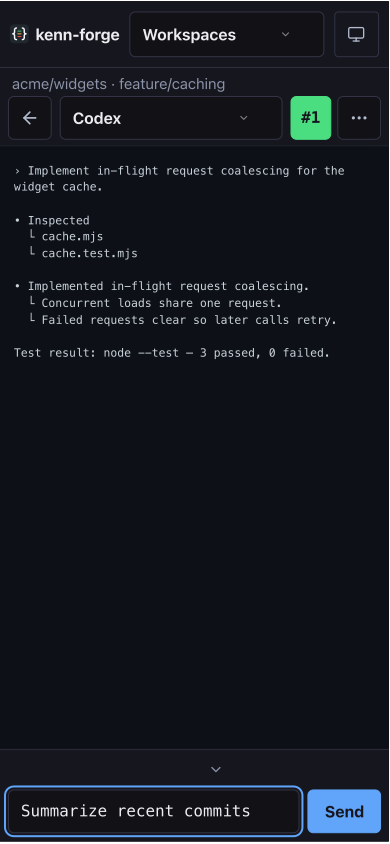
The phone composer helps with software keyboards, while direct terminal input still works with a hardware keyboard. Pull request and issue links return to the same mobile workspace and selected session.